Auto messages
Auto messages are messages TikTok sends for you, without a flow. They greet new followers and give every chat a head start. You set them up in Tuku, and TikTok stores and sends them.
Open Auto messages from the sidebar (under Engage).
The page has four cards:
| Card | What it does |
|---|---|
| New follower message | A DM TikTok sends when someone follows you. |
| Welcome message | Sent when someone opens a chat with you for the first time. |
| Suggested questions | Up to 3 FAQs shown when a chat opens. TikTok answers them instantly. |
| Chat prompts | Up to 6 buttons above the message box. A tap sends a message for the customer. |
Before you start
Section titled “Before you start”- Auto messages are set per TikTok account. If you have several connected accounts, pick one with the TikTok account menu at the top right. Each account has its own settings.
- The account must be able to use DMs through Tuku. If it can’t, a banner like DMs aren’t available for… appears. Click View checks to open the connection checklist. For example, a General TikTok Account can’t use DMs, and TikTok doesn’t offer DMs through partner apps for accounts signed up in the United States, the EEA, Switzerland or the UK.
- Owners, Admins and Managers can edit auto messages. Other roles can only view them.
- If no account is connected, you see Connect a TikTok account first.
How it fits with your automations
Section titled “How it fits with your automations”When a customer taps a chat prompt or a quick reply button, the tap arrives in your inbox as the customer’s own message. A DM Keyword automation with the same text can take it from there. The Automate and Set up automation buttons create that automation for you. See Answer a tap with an automation.
In the inbox, messages TikTok sent for you are marked TikTok auto message.
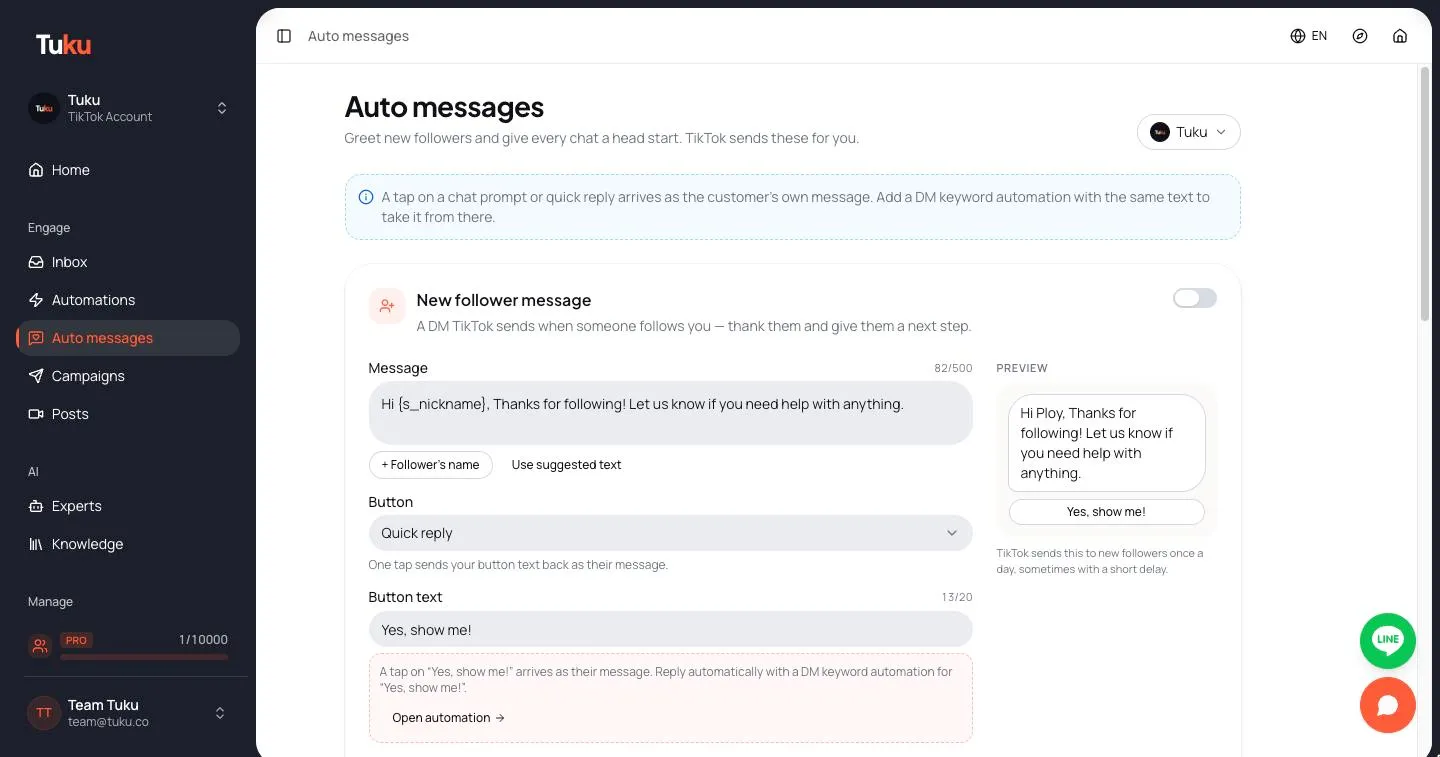
New follower message
Section titled “New follower message”A DM TikTok sends when someone follows you. Thank them and give them a next step.
- Write the Message (up to 500 characters). Click + Follower’s name to insert the follower’s TikTok name.
- Pick a Button:
- No button: just the message.
- Quick reply: one tap sends your Button text (up to 20 characters) back as their message.
- Shop button: opens your TikTok Shop. For Shop sellers and creators with active listings.
- Join group button: invites them to your group chat. For Shop sellers or accounts with 10K+ followers.
- Check the Preview on the right.
- Click Save and turn on (or Save if it already exists).
Use the switch at the top right of the card to turn it on or off.
Things to know:
- TikTok sends this to new followers once a day, sometimes with a short delay.
- If Shop button or Join group button is greyed out, TikTok says your account doesn’t qualify for it.
- TikTok offers the new follower message to a Verified Business Account (VBA), or to a TikTok Account with Advanced Access that ran TikTok Messaging Ads in the last 7 days.
- If the card shows Not available, TikTok hasn’t turned on new follower messages for this account yet. It is rolling out to eligible accounts. The connection checklist shows the same result under New follower message.
With Quick reply, a hint under the button text offers Set up automation, so you can reply to the tap automatically.
Welcome message
Section titled “Welcome message”Sent automatically when someone opens a chat with you for the first time.
- Write the Message (up to 250 characters).
- Click Save and turn on (or Save).
TikTok reviews every welcome message. The badge next to the title shows the review state:
| Badge | Meaning |
|---|---|
| In review | TikTok is checking it. The page refreshes by itself until the review is done. |
| Approved | TikTok accepted it. |
| Rejected | TikTok refused it. Edit the message and save it to send it for review again. You can’t turn it on while it is rejected. |
Suggested questions
Section titled “Suggested questions”Up to 3 FAQs shown when a chat opens. When the customer taps one, TikTok sends your answer instantly.
- Click Add question.
- Write the Question (up to 80 characters) and the Answer (up to 200 characters).
- Click Save.
Each question also goes through TikTok review (In review, Approved or Rejected). Use the pencil to edit a question, and the bin to delete it (click Delete to confirm). The switch at the top right turns all suggested questions on or off.
Chat prompts
Section titled “Chat prompts”Up to 6 buttons shown above the message box. A tap sends the prompt’s message for the customer.
- Click Add prompt.
- Write the Button label (up to 18 characters), for example
🛍 Best sellers. - Write the Message sent on tap (up to 150 characters), for example
Show me your best sellers. - Click Save.
Prompts also go through TikTok review. Use the arrows to change their order: the first prompt is the first button. The switch at the top right turns all chat prompts on or off.
When you reach the limit, the card shows You’ve reached TikTok’s limit of 6.
Answer a tap with an automation
Section titled “Answer a tap with an automation”A chat prompt tap, or a tap on the new follower message’s quick reply, arrives as the customer’s message. To answer it with a flow:
- On a chat prompt, click Automate. For the new follower message, click Set up automation under the button text.
- Tuku opens a new, unsaved automation called Reply to “…”. It has a DM Keyword trigger with Exact match on that exact text, and a starter Send Message.
- Change the message, add steps, and click Publish.
If an automation for that text already exists, the button says Open automation instead and opens it.
See DM flows for building the rest of the flow.
Use suggested text
Section titled “Use suggested text”TikTok often fills these messages with its own English default text. Click Use suggested text to replace it with Tuku’s suggested message in your workspace language. Then edit it to fit your brand and save.
Troubleshooting
Section titled “Troubleshooting”| Problem | What to do |
|---|---|
| Couldn’t load auto messages from TikTok. | Click Try again. If it keeps failing, check the connection checklist. |
| That’s longer than TikTok allows. | Shorten the text. The counter turns red when you are over the limit. |
| TikTok didn’t accept it: … | TikTok refused the change. Read the reason, change the text, and save again. |
| Welcome message is Rejected | Rewrite it, then save to send it for review again. |
| New follower message shows Not available | TikTok hasn’t enabled it for this account yet. Check again later. |