Tuku Assistant
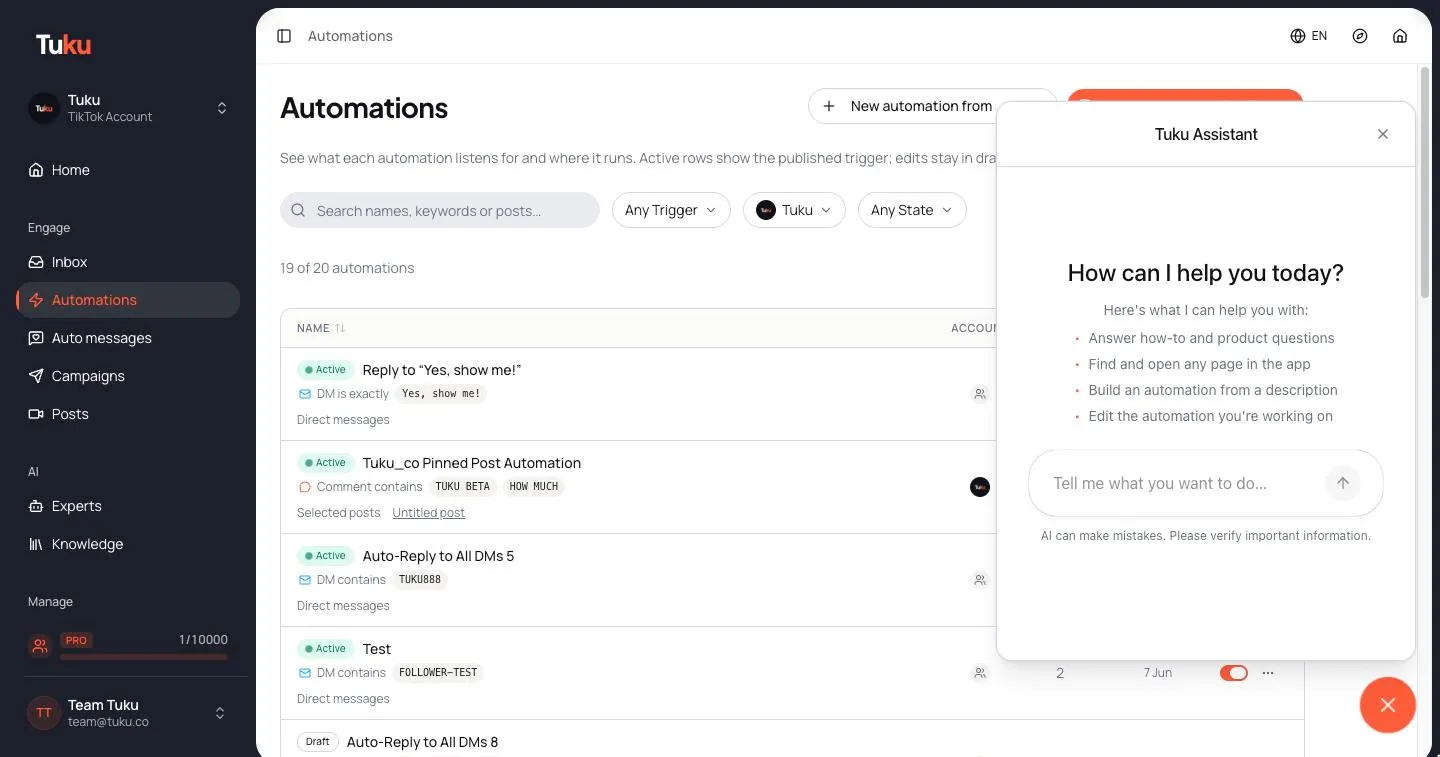
Tuku Assistant is an AI helper built into the Tuku app. Ask it in your own words, and it can:
- Answer how-to and product questions, using this manual.
- Find and open a page in the app.
- Build an automation from a description.
- Edit the automation you’re working on in the editor.
It replies in the language your app is set to.
Open the Assistant
Section titled “Open the Assistant”- Look at the bottom-right corner of any page in your workspace.
- Click the round chat button (the lowest button in the corner). The Tuku Assistant window opens.
- Type what you want in the box (“Tell me what you want to do…”) and press Enter.
Click the same button again to close the window.
Above the chat button is a green LINE bubble. It’s not the Assistant — it’s a direct chat with the Tuku founder. See Get help from a person.
Ask a how-to question
Section titled “Ask a how-to question”Ask things like “How do I connect TikTok?” or “What is a monthly active contact?”. The Assistant searches this manual first (you see Checked the manual), then answers and links to the manual page it used.
If the manual doesn’t cover your question, the Assistant tells you it isn’t sure.
Open a page
Section titled “Open a page”Ask “Where do I invite a teammate?” or “Open billing”. The Assistant opens the page for you (you see Opened a page) and tells you what you can do there.
It can open every page in the sidebar: Home, Inbox, Automations, Auto messages, Campaigns, Posts, Experts, Knowledge, Contacts, Analytics, and the Settings pages (General, Members, Billing, Profile). It can also open the page for a new automation or a new campaign.
It only opens pages your role can use. For example, it won’t open Billing for an Agent. To open one automation or campaign, use its page in the sidebar.
Build an automation
Section titled “Build an automation”Describe the automation you want, for example:
DM everyone who comments “price” on my videos with our price list, then reply “Check your DMs!” under their comment.
- The Assistant may ask a question first if the keywords or the message are unclear.
- It builds the automation and opens it in the editor (you see Created an automation).
- The automation is not saved yet. Check the trigger, the keywords and every message.
- Choose the TikTok account in the editor if needed. The Assistant doesn’t choose accounts for you.
- Click Save Draft to keep it, or Publish to make it live.
The Assistant can use comment keyword, DM keyword and any-comment triggers, and steps such as Send Message, Reply to comment, Send Image, Share a Post, Send Q&A Card, AI Expert, Wait for Reply, Wait for Follow, Timer, Condition and Human Handoff. See Flow nodes.
It only uses active Experts. If you have none, it asks you to create an Expert first.
Edit the open automation
Section titled “Edit the open automation”While an automation is open in the editor, ask the Assistant to change it — for example “Add a 10-minute timer before the second message” or “Translate all messages to Thai”.
The Assistant changes the steps in the editor (you see Updated the automation). The change is not saved. Review it, then click Save Draft or Publish. If you don’t like it, use Undo in the editor.
Limits
Section titled “Limits”- AI can make mistakes. Always check the answer, and every step and message, before you publish.
- It doesn’t save or publish anything. You do that yourself.
- It doesn’t send messages to your customers, and it doesn’t change settings, billing, members or contacts.
- It can’t create Experts or upload knowledge.
- It can’t open a single automation, campaign or contact directly — see Open a page.
- You can’t attach files or images in the chat.
Get help from a person
Section titled “Get help from a person”If the Assistant can’t help, use the green LINE bubble in the bottom-right corner — Chat with Tuku Founder for help or enquiry.
- Click it to open the chat in LINE.
- Hover over it on a computer to see a QR code. Scan it with your phone to chat on LINE.
You can also check Troubleshooting.