Knowledge Base
The Knowledge Base holds the documents the AI answers from — FAQs, product details, shipping and return policies, price lists, and anything else buyers ask about. You upload a document once, then attach it to one or more Experts. Experts answer buyers in your automations through the AI Expert step. See AI Expert conversations.
Open it from the sidebar: AI → Knowledge.
Admins and Managers can upload and delete documents. Agents and Viewers can only see the list.
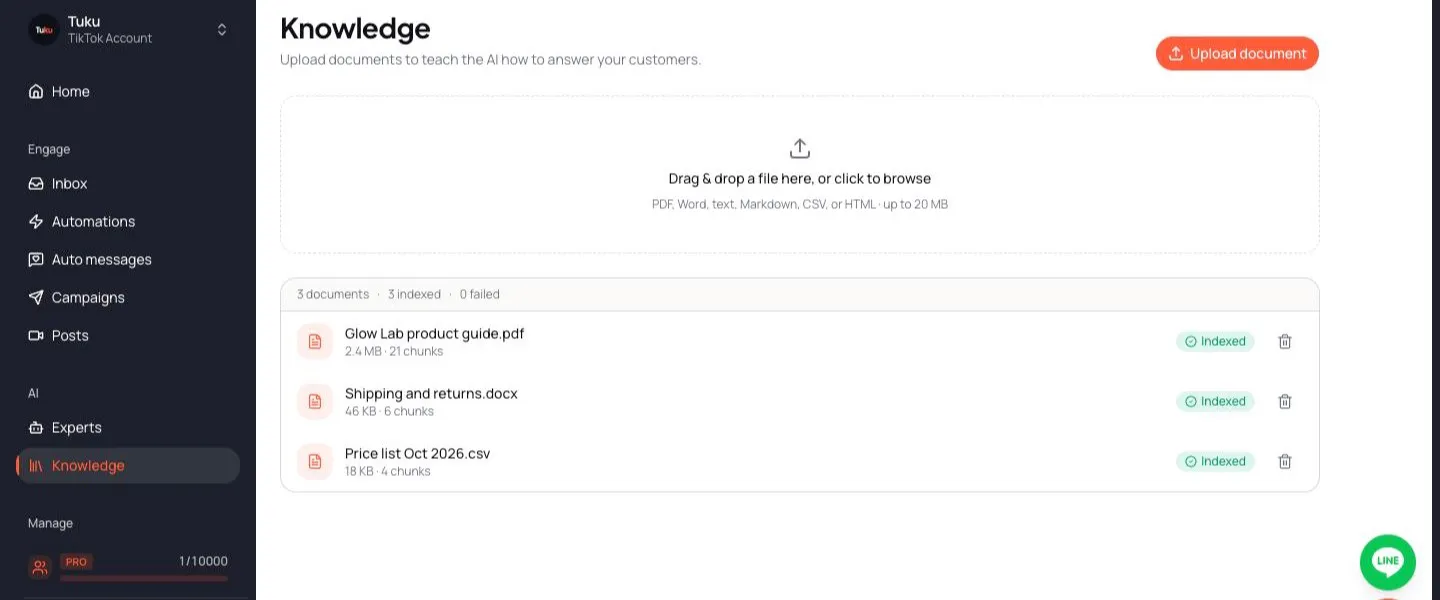
Upload a document
Section titled “Upload a document”- Go to AI → Knowledge.
- Click Upload document, or drag a file onto the drop area.
- Wait while Tuku processes it. The status shows Processing.
- When the status shows Indexed, the document is ready to attach to an Expert.
You can also upload a file directly from an Expert, in the Upload tab of Add knowledge.
Supported files
Section titled “Supported files”- PDF, Word, text, Markdown, CSV or HTML.
- Up to 20 MB per file.
- The file must contain real text. Scanned pages and image-only PDFs are not supported yet.
Other file types are refused with “Unsupported file type”.
Document status
Section titled “Document status”| Status | Meaning |
|---|---|
| Processing | Tuku is reading the file and preparing it for the AI. |
| Indexed | Ready. The AI can answer from it. The row also shows how many chunks (small sections) it has. |
| Failed | Something went wrong. Click Details to see why, then Re-index to try again. |
The top of the list shows how many documents you have, how many are indexed and how many failed.
Common reasons for Failed:
- We couldn’t read any text from this file — the file is scanned or image-only.
- The file never finished uploading or The stored file is gone — upload it again.
- The AI indexer was busy or Indexing didn’t finish in time — click Re-index.
If you click Re-index several times quickly, Tuku may ask you to wait about 30 seconds.
Attach knowledge to an Expert
Section titled “Attach knowledge to an Expert”A document only helps once it’s attached to an Expert.
- Open the Expert.
- Click Add knowledge.
- In the Library tab, choose the documents. Or use the Upload tab to add a new file.
- Click Done.
One document can be attached to several Experts.
Update a document
Section titled “Update a document”To change a document’s content, upload the new version and attach it to your Experts. Then delete the old version so the AI doesn’t use outdated facts.
Delete a document
Section titled “Delete a document”Click the delete button on the document and confirm. The document is removed from the AI’s knowledge. Every Expert that used it stops answering from it. The Experts themselves are not deleted.